Take wholesale applications and approve companies
Let a business apply from your store, check them, and turn them into a Shopify B2B company that can order on terms.
A wholesale customer in VerifiedHive is a Shopify B2B company. The app handles the part Shopify leaves to you: taking the application, holding it until you have checked it, and setting the company up properly when you say yes.
1. Let them apply
Add the Create a business account button from Settings, Storefront. It opens your published business account application. If you do not have one, the app builds it from the template and publishes it the first time the button loads, and you change the questions in Forms like any other form.
Each application arrives twice over: as a lead under Leads, and as a company waiting under Companies, To approve, with their answers under Read the application.
2. Check them, then approve
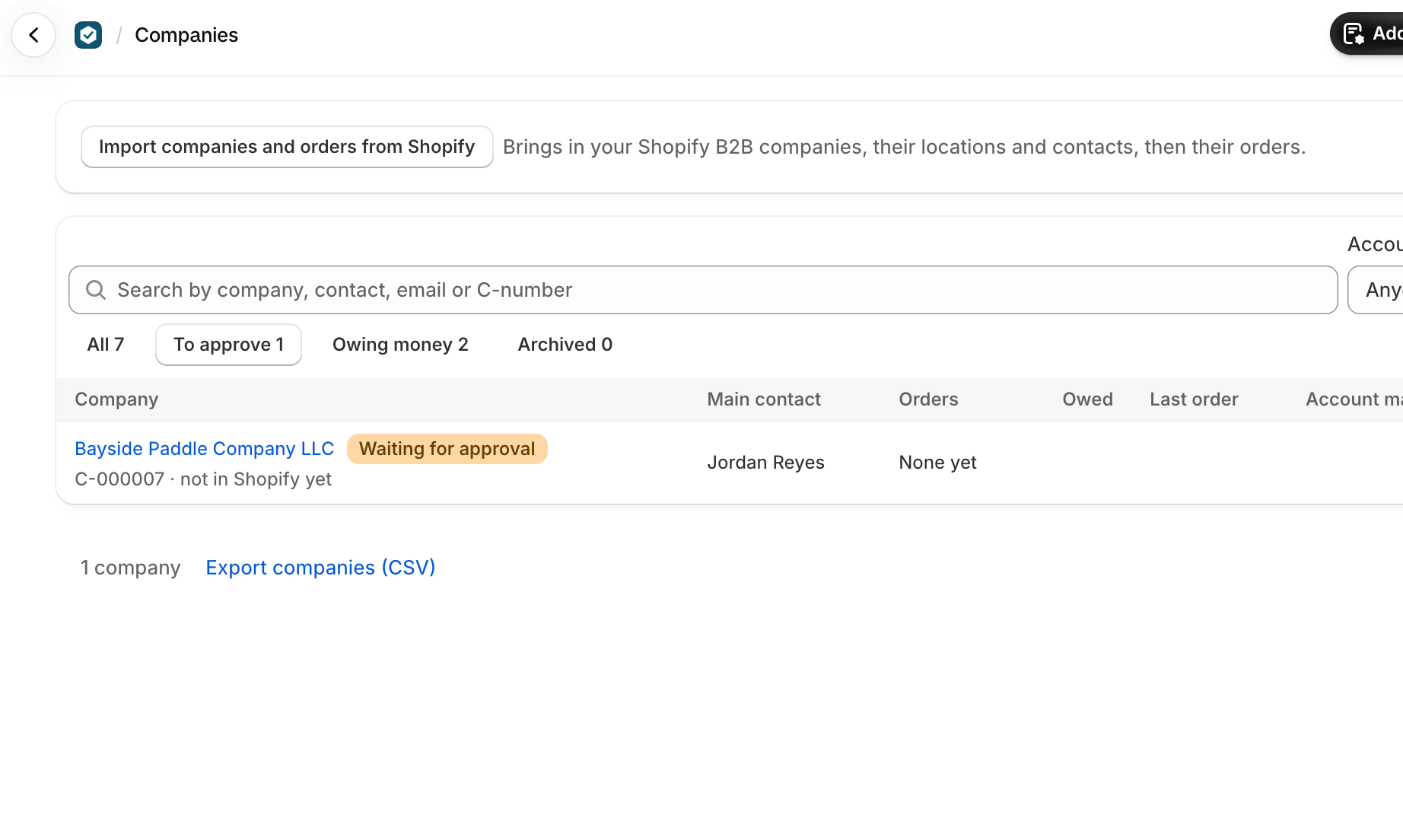
- Open the company and read the application.
- Press Approve, confirm the Payment terms and who may order, or press Reject.Approving is the moment the company is created in Shopify B2B, with its location and contacts.
If the app says Shopify did not let it set the company up, the usual cause is the plan: B2B comes with most Shopify plans but not Starter or Retail.
Approving several at once
After an import, or a busy week of applications, press Approve several on Companies, To approve. Tick the ones you want, choose one set of Payment terms, and approve up to twenty in a run. Each company keeps the people who already have permission, and a company where nobody has any gets it for its main contact.
Those payment terms replace whatever each company has, including terms that came from Shopify. A company that agreed to something different should be approved on its own page. A company with nobody to give permission to is listed and left alone: add a contact, then approve it there.
3. Let the buyer order on your store
- On the company, under Contacts, press Manage permissions.
- Choose Ordering only or Location admin for the location they buy for.
- Send them Shopify's B2B access email from that customer in your Shopify admin, or set the workflow below up once so it goes on its own.
VerifiedHive never emails your customers. Shopify can. Its free Flow app has a ready-made workflow, Send B2B access email to approved customer, which sends the invitation to sign in and start ordering the moment somebody is given permission to order. Approving here is what gives that permission, so once the workflow is on, the email goes out on every approval, including the ones you do several at a time. The wording lives in that workflow, and so does the switch that turns it off.
Locations are where the detail lives
Open a location from the company page, under Locations, Open. Each card has its own Edit: Details, Addresses, Payment terms, Checkout, Tax and the buyer's own Shipping account. A new order for that location starts from all of it, which is why filling it in once saves time on every order afterwards.
Companies you already have
Press Import companies and orders from Shopify on the Companies page and leave the page open while it runs. Companies, locations and contacts come first, then their orders. You only do it once: after that, new Shopify companies and B2B orders arrive on their own.
Companies stay in step both ways. What you change here is saved to Shopify, and changes made in Shopify come back. If a page says it is not up to date in Shopify, press Try again.
One business, one account
The app refuses to make a second account for a name it already has, so a buyer applying twice, or a lead converted from two different leads, lands on the account you already have. Acme, Inc. and ACME count as the same business.
A company created in Shopify can still arrive as a second account, because nothing can tell a subsidiary from a name typed twice. When that happens a Look-alikes tab appears on Companies, with both accounts side by side and what hangs off each one. Press Keep this one on the account the business trades under and the others are archived, where you can still bring them back. An account that has orders is never archived this way: open it and decide what happens to its orders first.
What trips people up
- Shopify gives the app only the last 60 days of orders unless it has access to all orders.
- You import once. After that, new Shopify companies and B2B orders arrive by themselves.
- New to B2B? Skip this: companies are made from business account applications and when you convert leads.
- A Shopify company where nobody may order yet comes in under To approve, as Shopify lists it under Ordering not approved.
- Until it's approved a company can't order on your store or be sent orders. In Shopify it shows under Ordering not approved.
- Giving someone permission to order in Shopify approves the company here too.
- If the banner says it may be a company you already have, reject it and add the person as a contact there instead.
- If you see Not up to date in Shopify, press Try again.
- Catalogs are set up in Shopify; here you see which ones price this location.
- New orders for this location start with its payment terms and its usual shipping, not the store's defaults.
- The Shipping account and Usual shipping are kept in VerifiedHive only.
- Sending an order to someone with no permission at its location gives them Ordering only there, and the order says so.
Check you have it
A business applied on your store. Where do you find it?
Under Companies, To approve, and on Home under Companies to approve. Its answers are under Read the application.
Short answers on this
- Why do new companies wait for my approval?
- Can I approve a lot of companies at once?
- Does the customer get an email when I approve them?
- Approving a company says Shopify didn't let VerifiedHive set it up.
- How do I bring in the companies I already have in Shopify?
- Are companies kept in step with Shopify?
- How does a buyer sign in on my store to order?
- Where do I set a location's payment terms, tax or shipping account?
- The same business is here twice.
Read next
- Put a quote form on your storeBuild a form, publish it, and put it on your store as a page, a product page button, or both, so requests arrive as leads instead of emails.
- Build an order from scratchFrom pressing New order to a page your customer can approve: the company and buyer, the items, shipping, tax and payment terms.
Ask the guide
A question in your own words, answered from these pages and nothing else, and you can keep asking. It has no access to any store, so ask it how something works rather than about one order of yours.